


The Dashboard is your home in Cyberday — the single surface that answers "where do things stand?" across every framework you're working under and every workflow you have running. Open it first in the morning, and return to it between focused sessions.
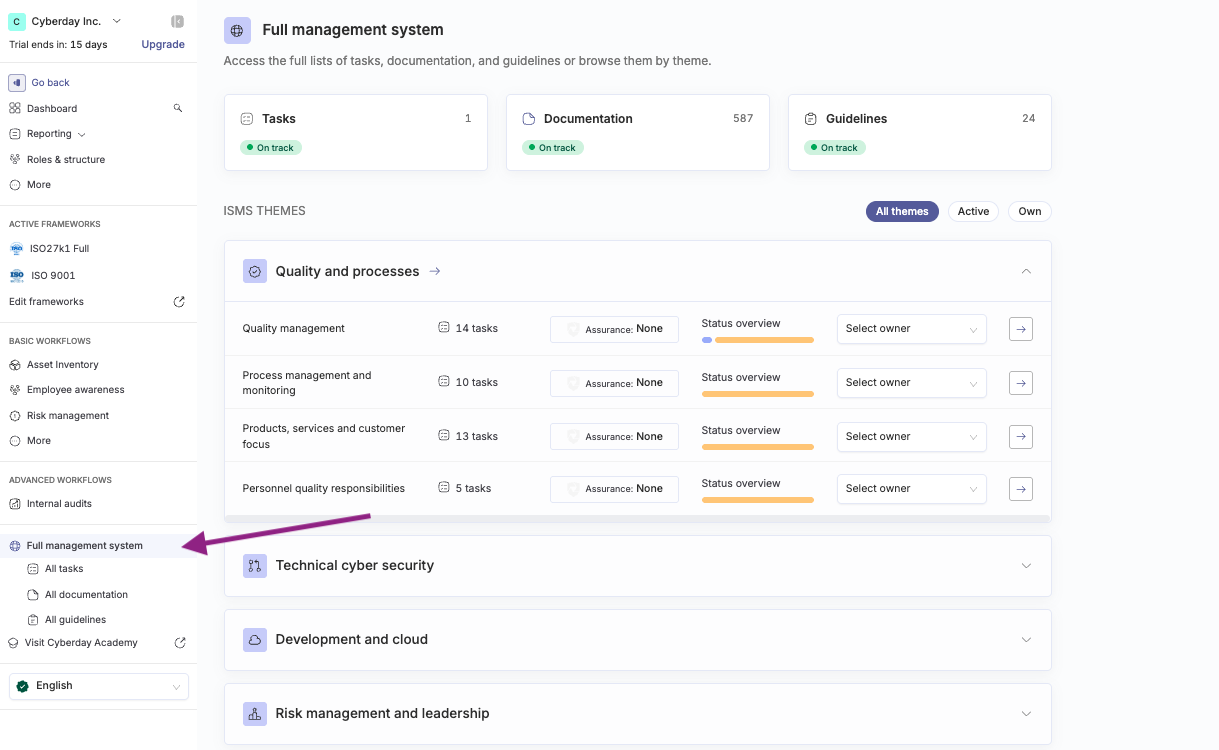
🆕 What's new: The Dashboard has been redesigned to put framework compliance and workflow status front and centre. The content that previously lived on the Dashboard hasn't gone away — it's all available under Full management system in the left menu.
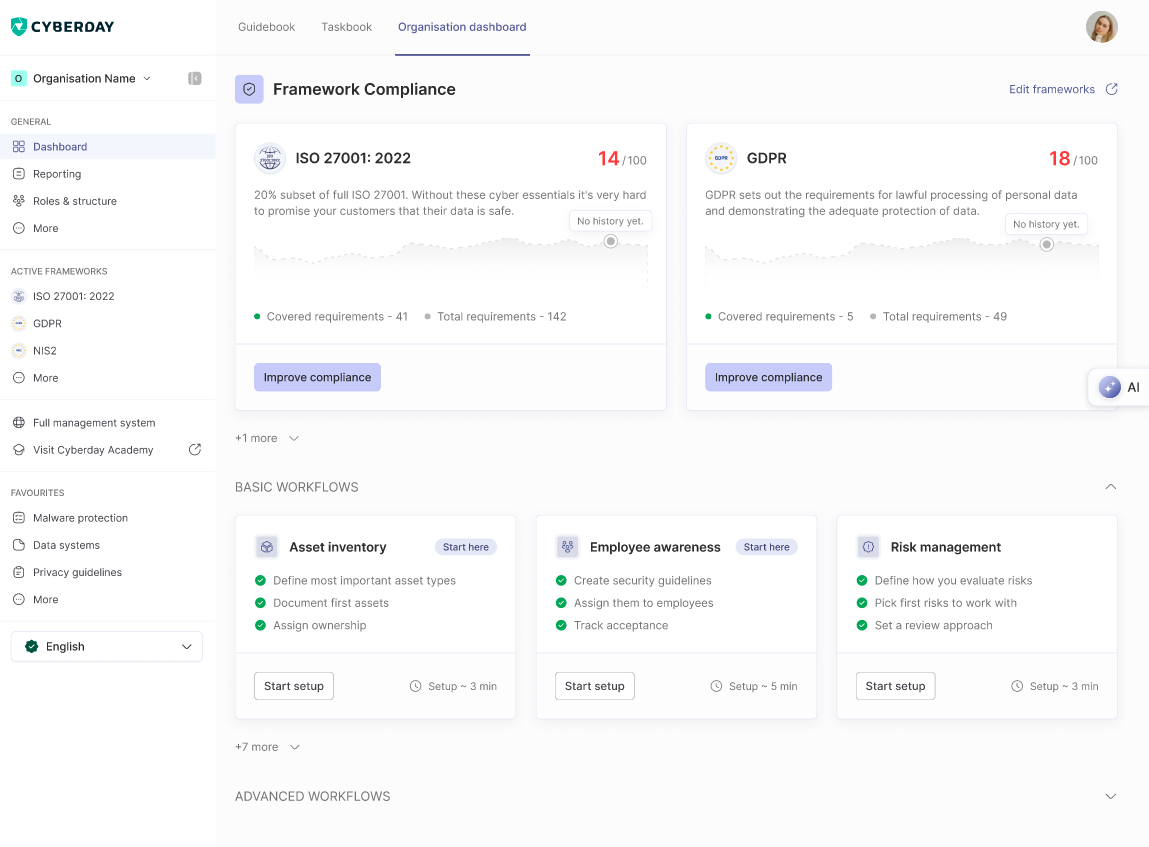
What's on the page
Framework compliance
At the top: one card per active framework (e.g. ISO 27001:2022, GDPR, NIS2), each showing:
- The current compliance score out of 100
- The trend over time (or a No history yet placeholder for first-time users)
- Covered vs total requirements (e.g. 41 / 142)
- Improve compliance — This is the main action for frameworks, that takes you to that framework's compliance view to see the full picture and carry out improvements
An Edit frameworks link in the header lets you see the full catalogue of available frameworks and activate or deactivate frameworks at any time.
Workflows
Below the framework cards, workflows appear as their own cards — one per active or available workflow. What you see depends on the workflow's state.
A workflow has two top-level states:
- Not running — the workflow hasn't been set up yet. The card shows a short description, three key outcomes it produces, an estimated setup time, and a Start setup or Enable button.
- Running — the workflow is set up and operating. The card shows the workflow's key metrics, a sub-status indicator, and a link to the workflow's full page.
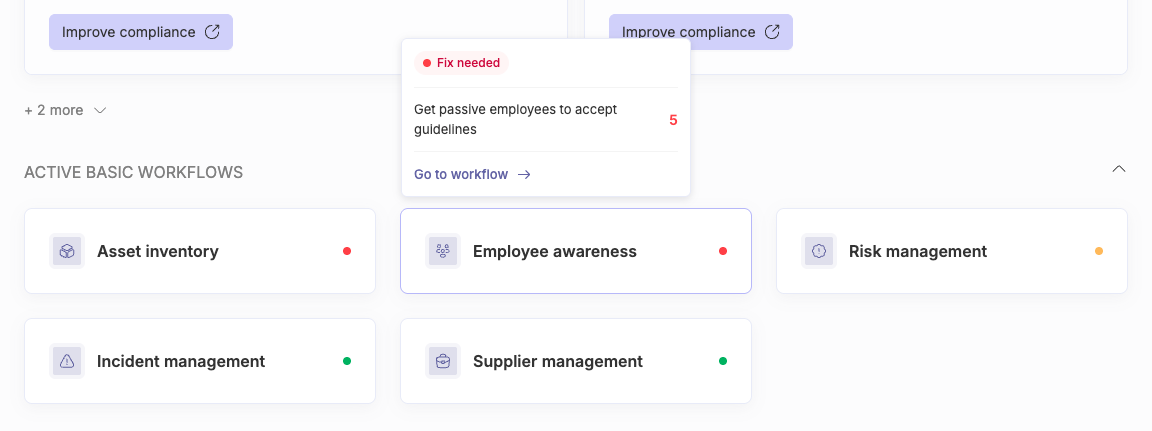
When a workflow is running, the card shows one of three sub-statuses:
- Fixes needed — there are blockers to resolve (e.g. risks overdue for review, unassigned owners, unresolved findings)
- Check in — no blockers, but some workflow metrics are below their goal (e.g. guideline acceptance at 72% with a 90% goal)
- On track — no blockers, metrics above goal; the workflow is healthy
The sub-status is what answers "is my ISMS running well?" at a glance. Drilling into any workflow card is one click.
How it evolves with use
The Dashboard's emphasis shifts as you set up more of the ISMS:
- First visit — workflows appear in their not running state, with the obvious starting points (Asset inventory, Employee awareness) tagged "Start here". The page points rather than overwhelms.
- Over time — as workflows go live, their cards switch to running with metrics and sub-statuses. An Active basic workflows strip surfaces the running ones at a glance. Workflows that aren't enabled yet still appear, grouped into Basic workflows and Advanced workflows, so the next move is always visible.
Where the old Dashboard content lives now
What was previously on the Dashboard — and the All tasks, All documentation, and All guidelines views you've been reaching from the left menu — are all still available under the new Full management system section in the sidebar.
The new Dashboard becomes the default path through Cyberday; the existing paths remain as a parallel, complete surface for the work you already know how to do.
Questions and feedback
Do you have any further questions, would need another help article or would like to give some feedback? Please contact our team via team@cyberday.ai or the chat box in the right lower corner.


