


ISMS document importing (for existing policies / procedures)
With the ISMS document importing feature, Cyberday allows you to import your existing policy and process documents and matches relevant content from the ISMS to your documents and fills them with your implementation details.
This feature is on beta stage: available by request for any interested users.
Uploading documents for analysis
The document importing feature can be found in the 'files' page, where there is a separate tab for the document import files, called 'main documents'.
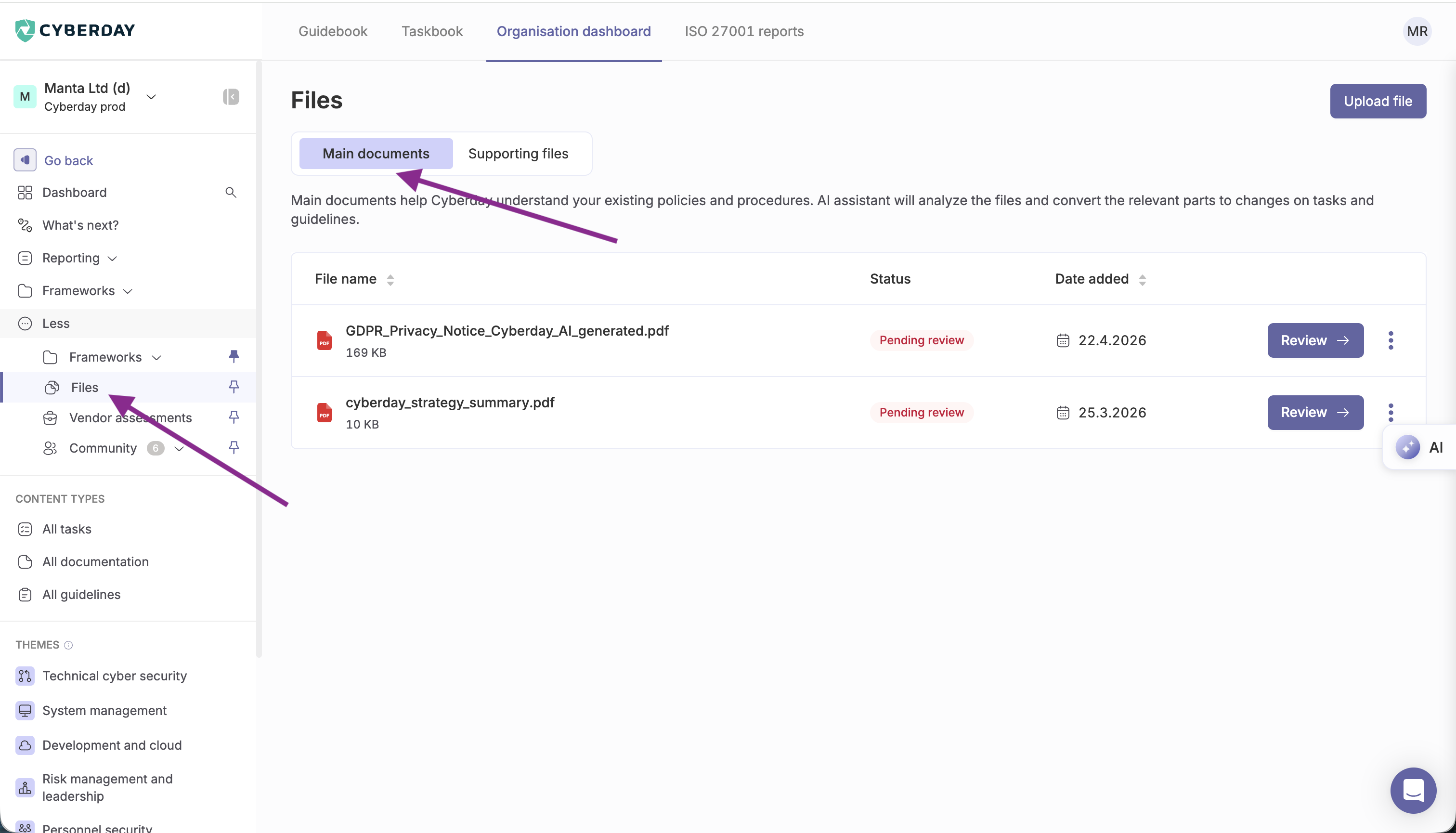
Here you can upload any and as many documents as you wish to put for analysis.
Note the different formats allowed (PDF, DOCX, CSV, XLSX, TXT, PPTX, HTML); this tool works primarily with text based inputs and may not read images/text embedded in images to its best ability.
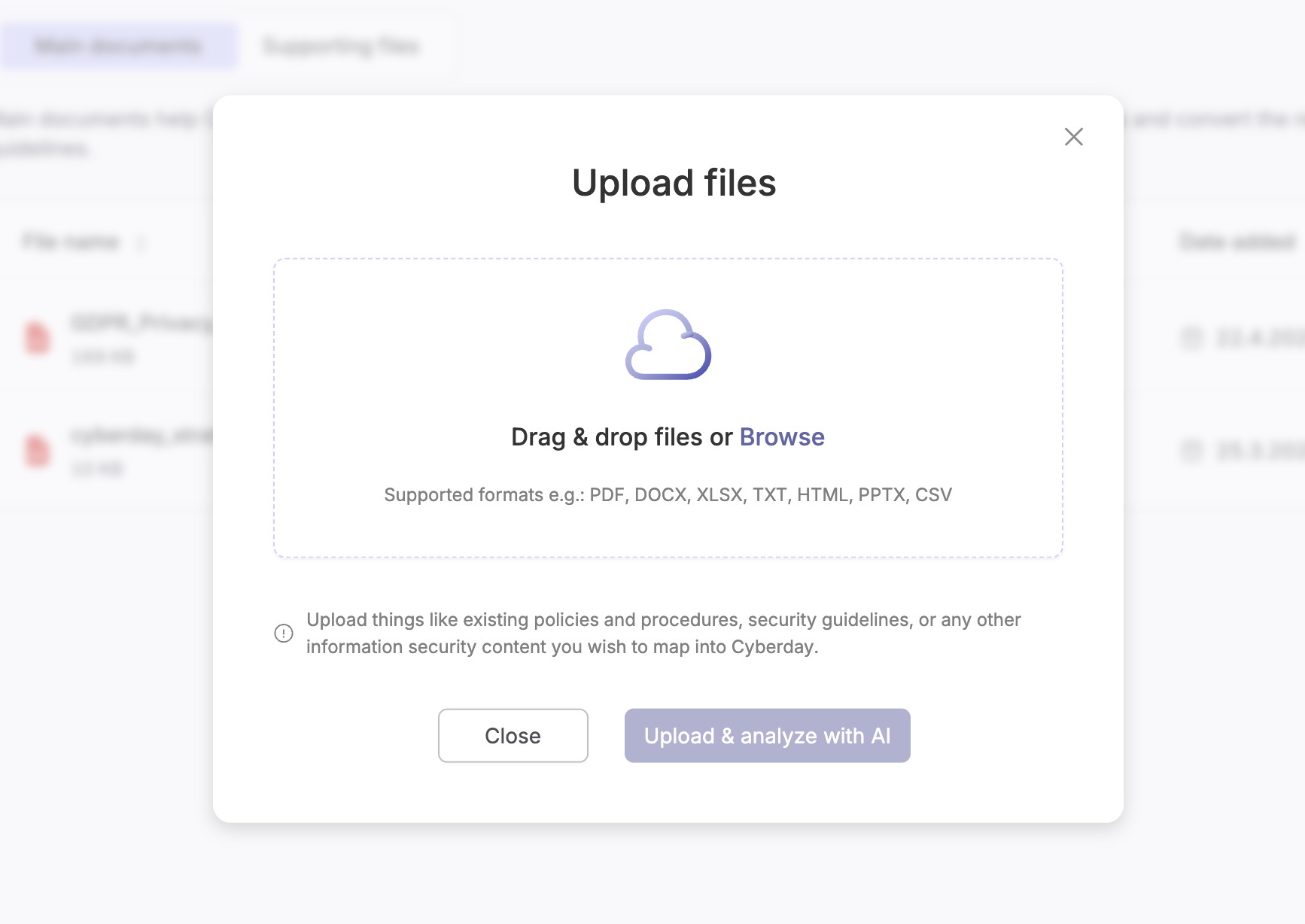
Once the documents have been uploaded, the tool will begin the analysis. This may take a few minutes, depending on the size and complexity of the file.
Hint: This process will run in the background, so you do not need to stay on this page to wait for it to finish!
How the tool works
The importing tool works through a combination of different tools and agents to analyse the document and match it to the content in Cyberday. In the first step the tool converts the document into a json format and splits it into smaller sections based on the structure of the document. Then the different agents match all the sections in the report based on their content; sorting if the section belongs to tasks, guidelines, documentation or if the section is just informational. From there the other agents match the content to the relevant tasks, guidelines and documentation and fill the content.
Reviewing the results of the analysis
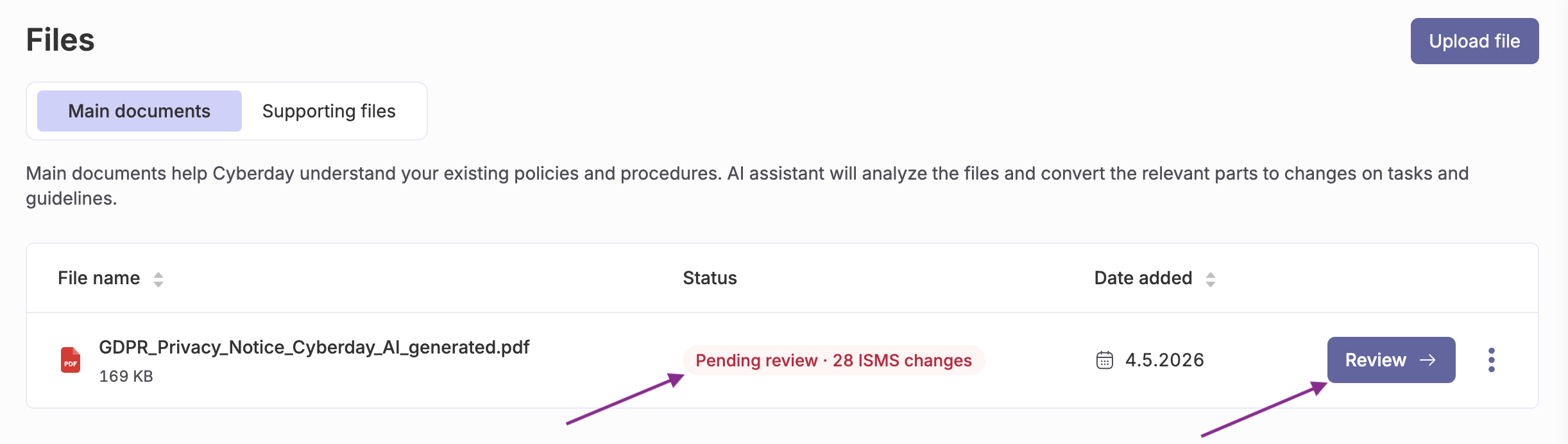
Once the documents are finished processing, you will see their status on the files page change to 'Pending review' and can select 'Review' to begin evaluating the results. You will also be able to see how many changes the tool suggest implementing based on your document.
In the review view, you will see the content of your document in a report split into many smaller sections based on the content. These sections will then either be linked to task items, guideline items or documentation items (documentation items are a work in progress still). At the top right of each section you can also view which type the section was linked to and when hovering over that tag, it will display which exact content list it fetched.
Note: Sections can also have no linked items if they are purely informational or have no relevant content for the ISMS.
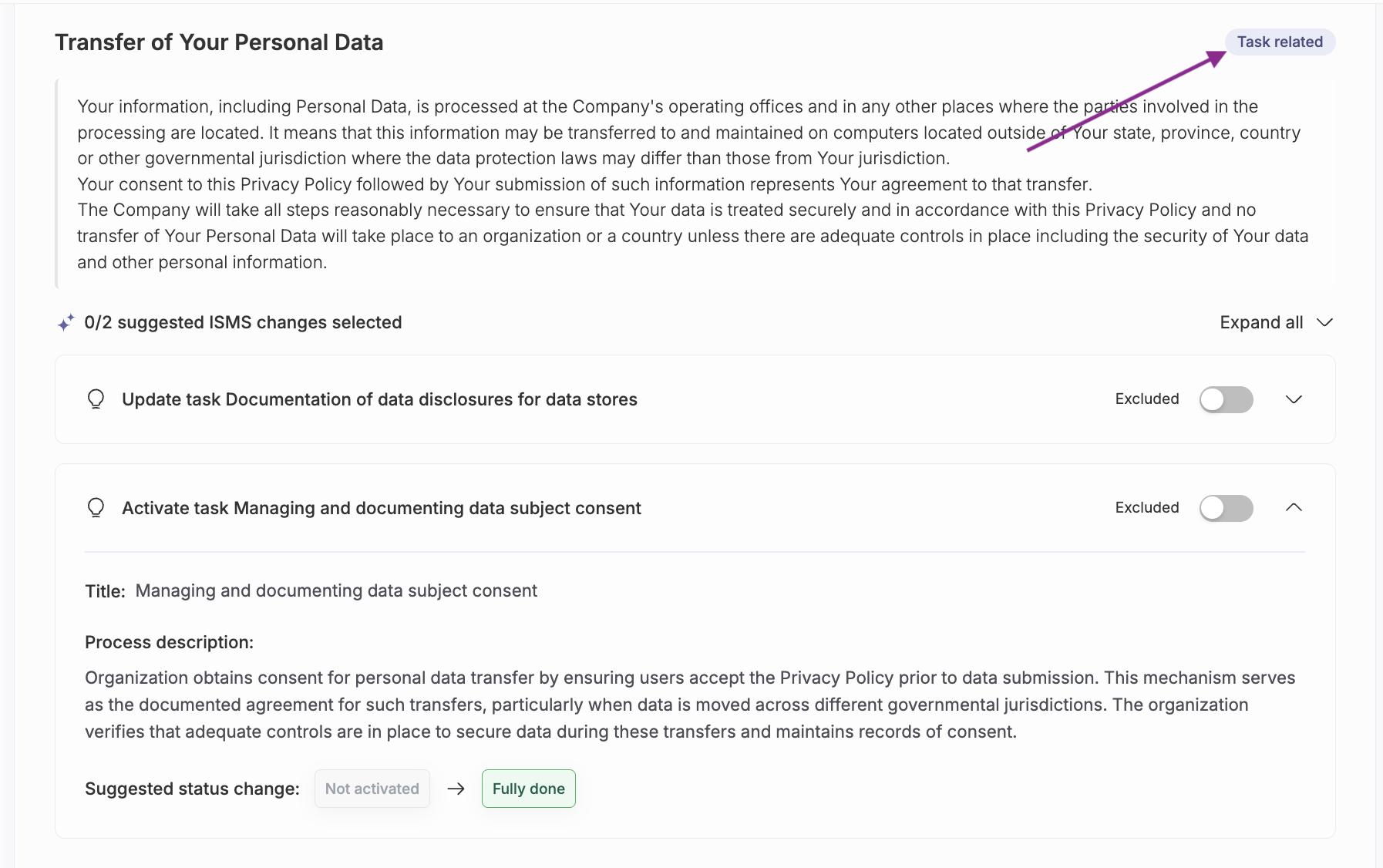
In most cases the tool will suggest activating existing tasks from the Cyberday library or updating tasks you have activated in your ISMS. In some cases, the tool will also suggest creating new tasks if there is information specific to your organisation or outside of the task library. In cases where you already have process descriptions filled for tasks, the tool will only ever append information to the description, never delete or remove what is already there.
In this view you can then expand the details of each suggested change and read the process description it has created based on your implementation details, as well as the task status it will change.
Note: When multiple sections are linked to the same task across the whole document, it will display how many sections the task references and the process description generated for that task will combine content from all sections referenced.
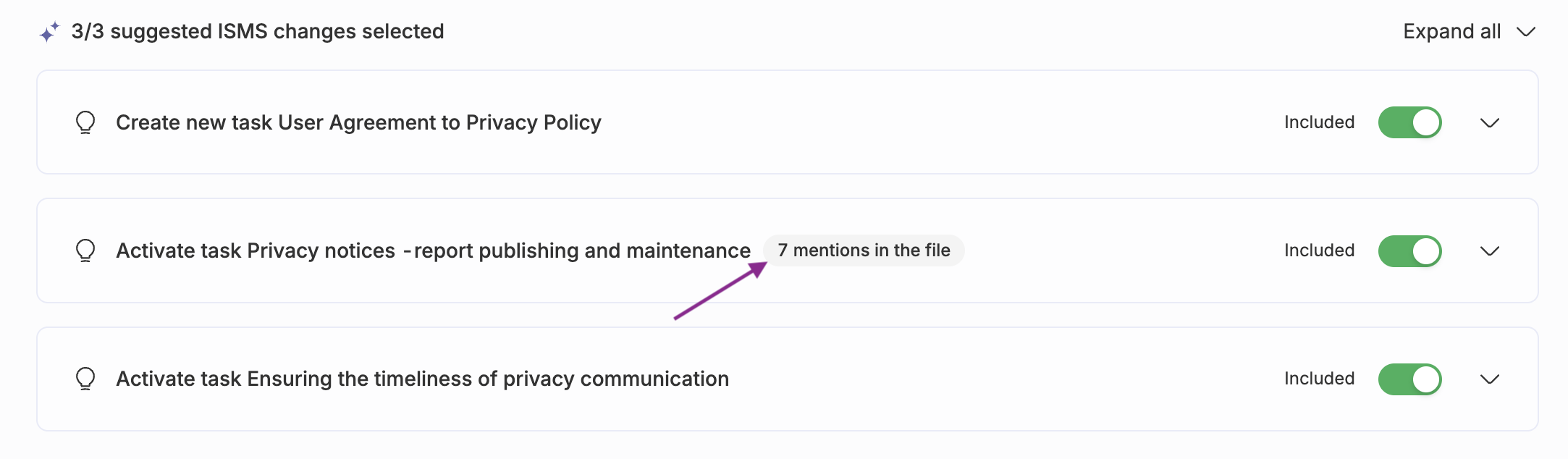
Applying the changes
After reviewing the suggested changes, you can then select which changes you would like to include in your ISMS. To select which changes to include, press the toggle next to each item to include and then hit 'Apply all changes' either at the top of the report or at the bottom left in the navigation bar.
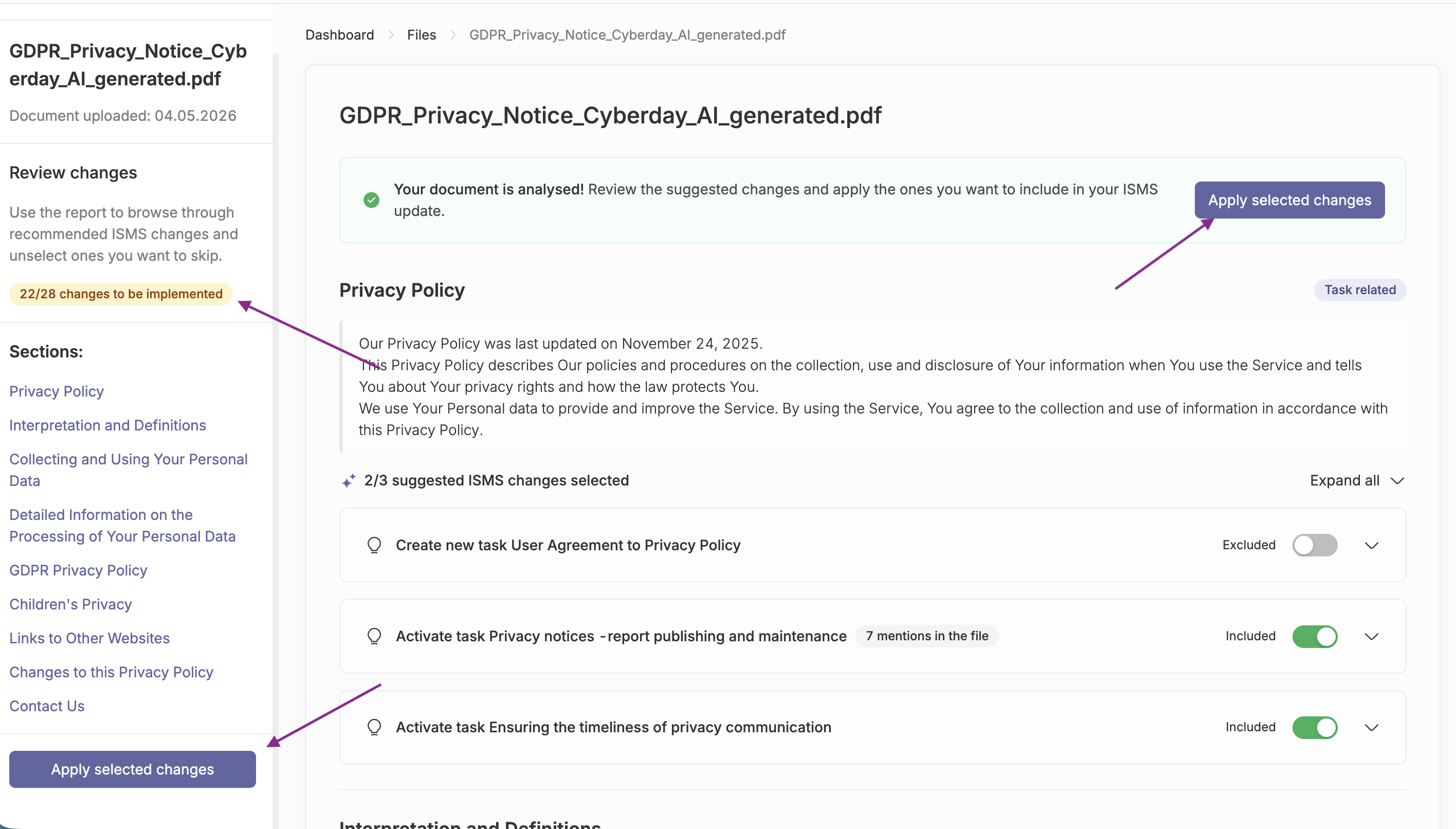
The left sidebar also displays how many changes are currently selected to be changed out of the total amount suggested.
Seeing the changes
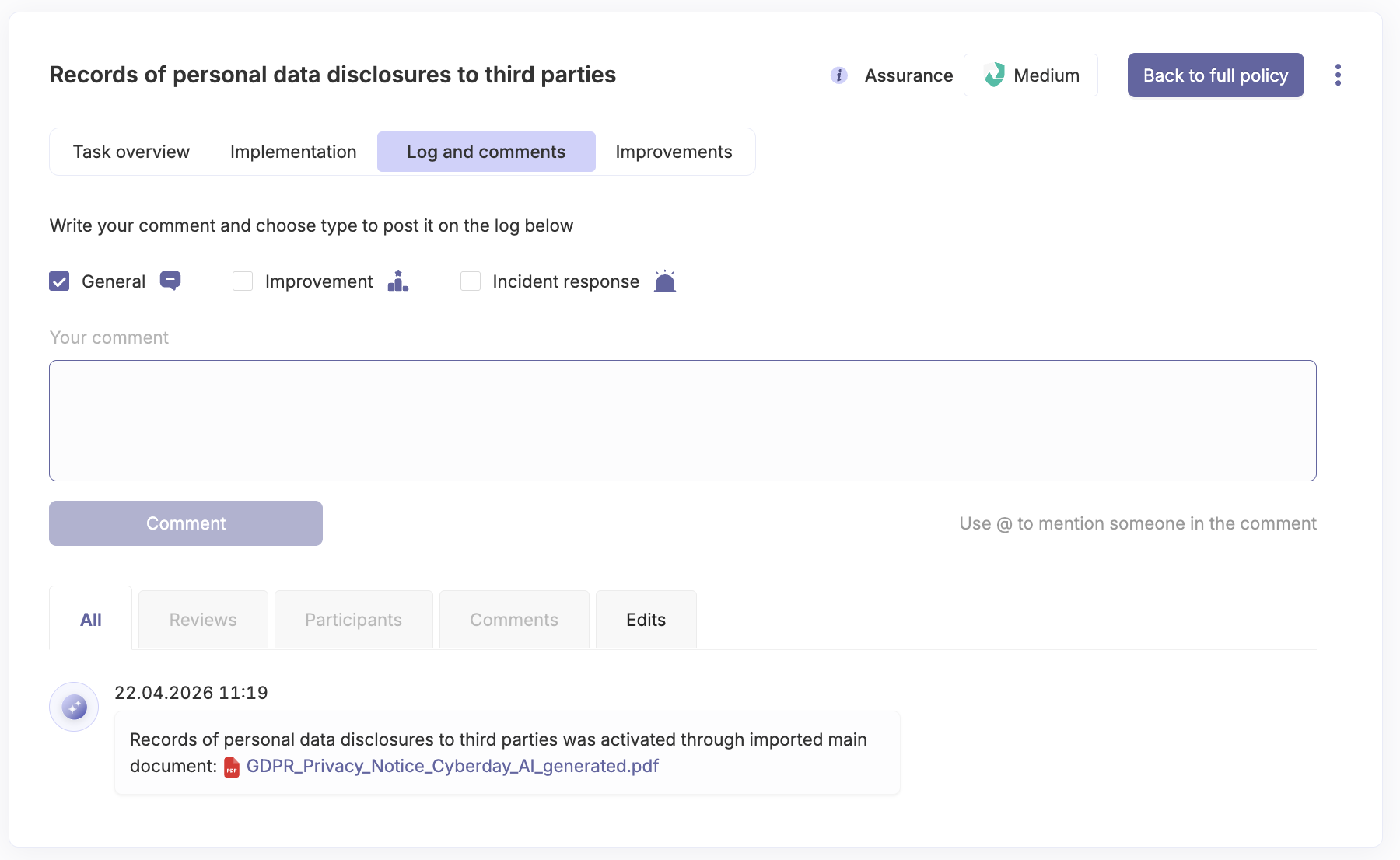
After changes have been applied from the document importing, you will be able to see events on the 'all events' page and on task logs showing that changes have been made using the import and the file those changes are from.
Questions and feedback
Do you have any further questions, would need another help article or would like to give some feedback? Please contact our team via team@cyberday.ai or the chat box in the right lower corner.


