


Cyberday MCP lets your AI assistant of choice connect securely to your Cyberday ISMS and read live data dynamically, instead of just a snapshot of progress.
Your AI assistant can look up real tasks, retrieve your risk register, and browse data systems in real time, without you having to export anything.
How to activate the Cyberday MCP connection
Enabling the MCP connection happens through the settings panel, which is only available to admin users of your group.
In the settings, navigate to the Integration settings section and enable 'MCP Server access'
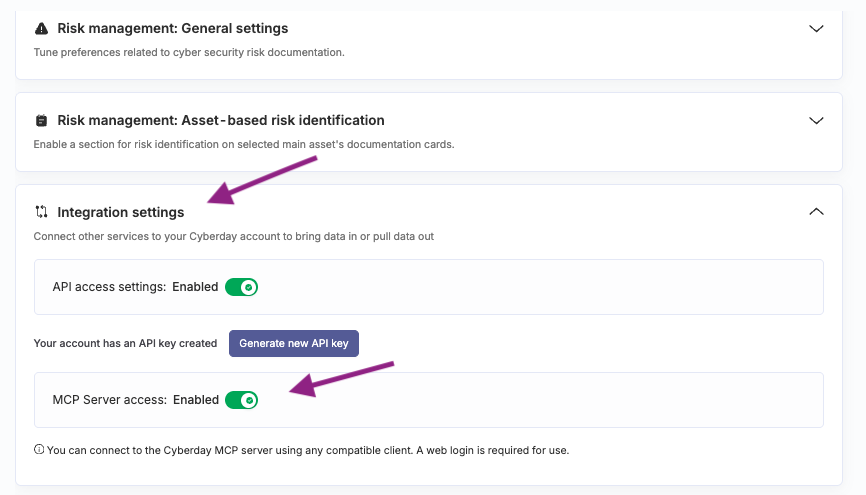
For teams users: You will need to log in to Cyberday on your browser to continue the next steps, as the authentication with MCP requires a web login.
Connecting to your client
Cyberday's MCP server follows the standard Model Context Protocol specification, so any compatible client can connect using the server URL:
https://mcp.cyberday.ai/mcp
After connecting via the URL, you will need to authenticate with your Cyberday account.
Authentication is web-based. When you first connect, your client will open a browser window to complete login via your Cyberday account. No API keys required.
How to connect to your client will vary based on which client you are using, but generally there should be some setting called 'connectors' or 'apps' where you can find MCP related instructions. See your client's documentation for best results, or check our developer site for more detailed instructions for connecting to Claude, Chat GPT or other clients.
Using Cyberday MCP
Once you have the MCP connected to your client, you can then use your ISMS' data with your AI to read or create tasks, documentation items and events.
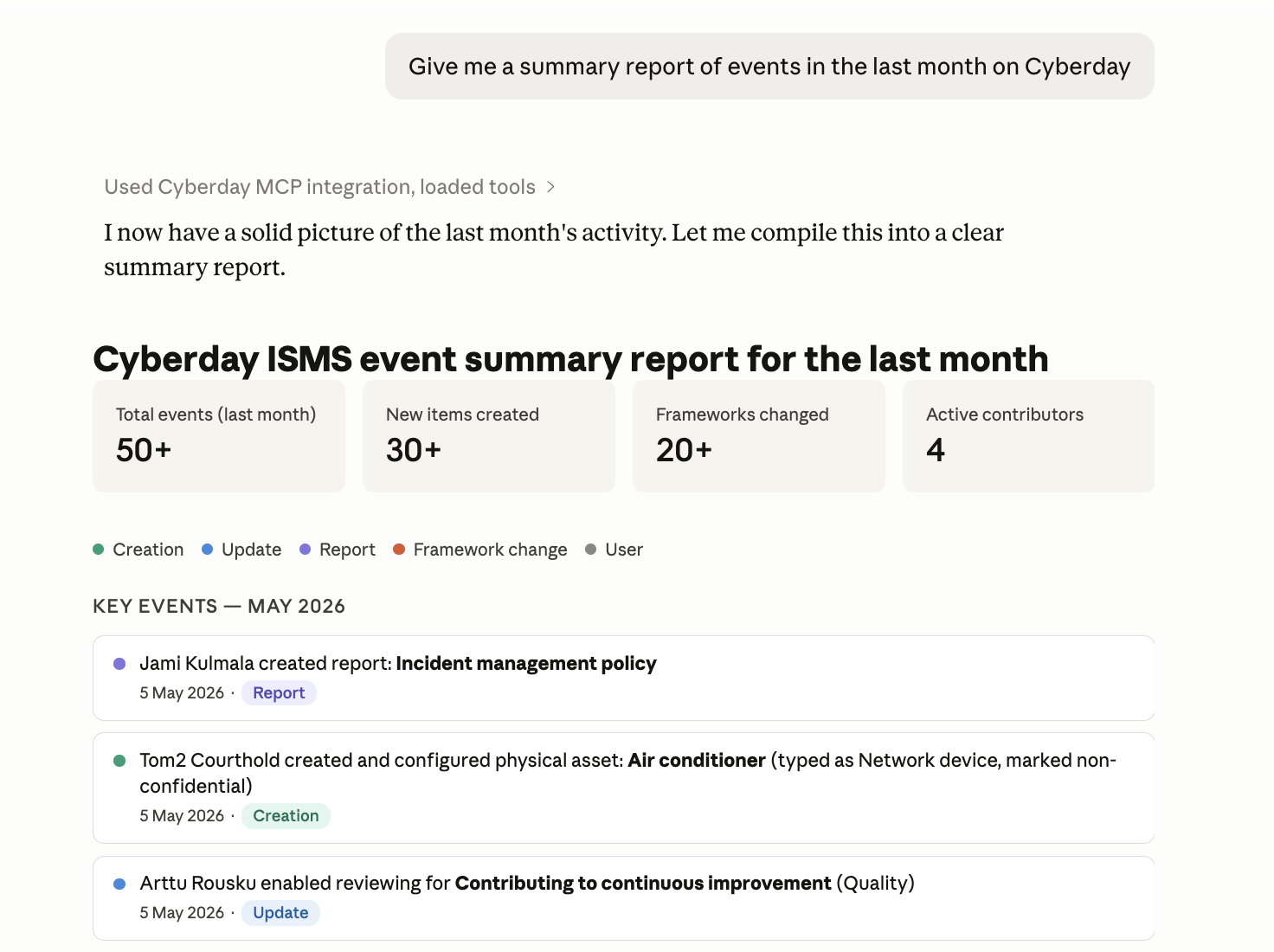
You can for example ask the AI to create a summary of your recent events in Cyberday
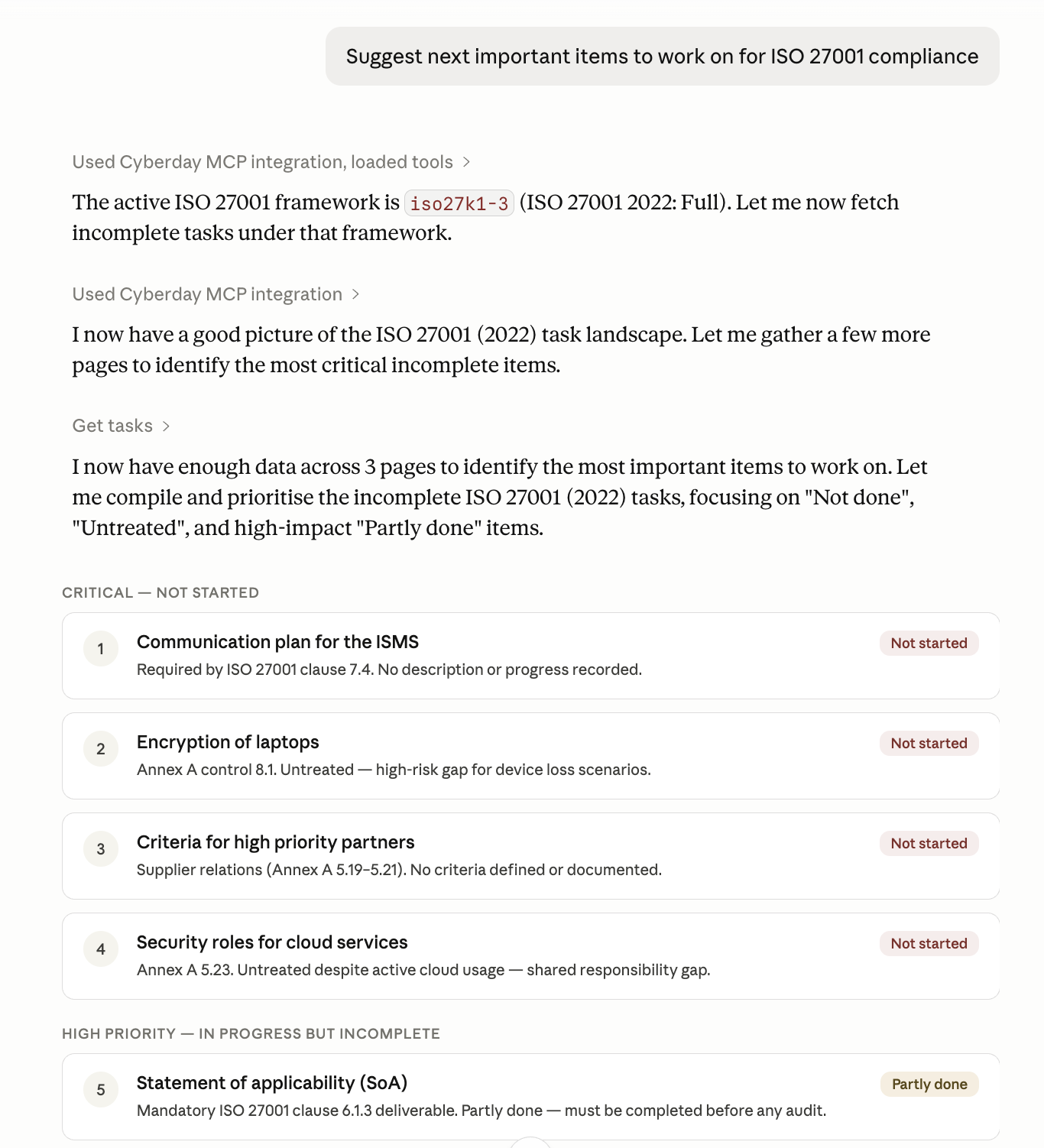
It can also read all the details of tasks and documentation items, which includes all the 'question fields' in documentation items, ownerships, which frameworks tasks are connected to and any implementation details. With this you can, for example, create a list of important tasks to work on for the ISO 27001 framework:
Creating items at the moment is just limited to documentation items. Here you can add items with title and description fields, or upload a spreadsheet of items you want added and the AI can create those in Cyberday for you (Note that detailed creation with owner assignments and other filled fields is not available at the moment).
Questions and feedback
Do you have any further questions, would need another help article or would like to give some feedback? Please contact our team via team@cyberday.ai or the chat box in the right lower corner.


